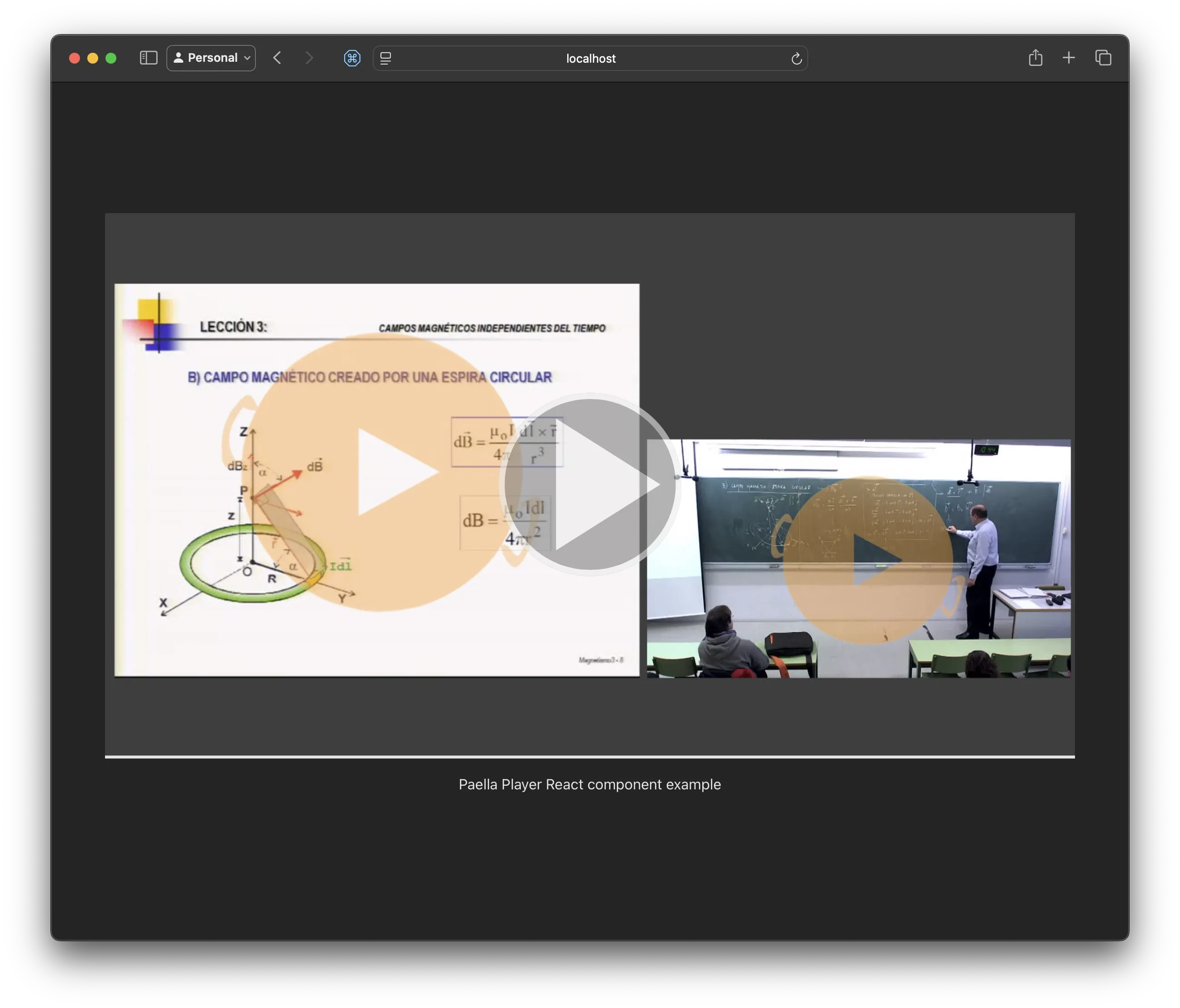
React Integration
In this document, we will explore how to implement a video player using the paella-core library within a React application created with Vite. Vite is a modern web application build tool that focuses on providing a fast and efficient development experience. On the other hand, React is a popular JavaScript library for building user interfaces, known for its flexibility and ease of use.
Creating a Vite Project with React and TypeScript SWC
Section titled “Creating a Vite Project with React and TypeScript SWC”To get started, it is essential to have Node.js 20, or a newer LTS version, installed on your system. Once you have Node.js 20 installed, you can proceed to create a new Vite project.
- Open your terminal and run the following command to create a new Vite project:
npm create vite@latest-
Follow the setup assistant’s instructions. When prompted to select a template, choose
Reactas the framework andTypeScript SWCas the variant. This will allow you to create a Vite project with React and TypeScript. -
Once you have selected the template, Vite will prompt you to enter a name for your project. Enter the desired name and press Enter.
-
Now, navigate to the directory of your newly created project:
cd your-project-name- Finally, install the required dependencies by running:
npm installWith these steps, you will have successfully set up a Vite project using the React template with TypeScript SWC. You are now ready to start developing your application and adding features like implementing a video player using paella-core, which will be covered in subsequent chapters.
Installing paella-core
Section titled “Installing paella-core”To use the paella-core library in your React application, you need to install it as a dependency. You can do this by running the following command in your project directory. In this example, we will use two libraies: the main Paella Player core library and a complementary liblrary with a set of useful paella plugins.
npm install @asicupv/paella-core @asicupv/paella-basic-pluginsNow, you can execute the following command to start the development server:
npm run devThis will start the Vite development server, and you can view your application in the browser at http://localhost:5173 (or the port specified in the terminal).
Adding the player configuration and video manifest files
Section titled “Adding the player configuration and video manifest files”In this tutorial we dont going to explain how to create a player. To do it, you can check the following tutorials:
- quick start tutorial: create a basic player and play a video file.
- Two streams: use a video manifest file to play a video with two streams.
- Plugins: add plugins to the player.
So in this step we are simply going to add the files we need for the player to work. These files should be placed in the public folder of the application, as they are not compiled (they are loaded directly from the server at runtime).
Create the following folders and files in the public folder:
public/config/config.json
{    "repositoryUrl": "repository",    "manifestFileName": "data.json",    "defaultLayout": "presenter-presentation",    "defaultLanguage": "en",    "defaultAudioStream": "presenter",
    "logLevel": "INFO",
    "plugins": {        "es.upv.paella.singleVideo": {            "enabled": false,            "dualVideoContentIds": [                "presenter-presentation-dynamic",                "presenter-2-presentation-dynamic",                "presenter-presenter-2-dynamic",                "presenter-presentation",                "presenter-2-presentation",                "presenter-presenter-2"            ],            "validContent": [                {                    "id": "presenter",                    "content": [                        "presenter"                    ],                    "icon": "present-mode-2.svg",                    "title": "Presenter"                },                {                    "id": "presentation",                    "content": [                        "presentation"                    ],                    "icon": "present-mode-1.svg",                    "title": "Presentation"                },                {                    "id": "presenter-2",                    "content": [                        "presenter-2"                    ],                    "icon": "present-mode-1.svg",                    "title": "Presentation"                }            ]        },        "es.upv.paella.singleVideoDynamic": {            "enabled": true,            "dualVideoContentIds": [                "presenter-presentation-dynamic",                "presenter-2-presentation-dynamic",                "presenter-presenter-2-dynamic",                "presenter-presentation",                "presenter-2-presentation",                "presenter-presenter-2"            ],            "validContent": [                {                    "id": "presenter",                    "content": [                        "presenter"                    ],                    "icon": "present-mode-2.svg",                    "title": "Presenter"                },                {                    "id": "presentation",                    "content": [                        "presentation"                    ],                    "icon": "present-mode-1.svg",                    "title": "Presentation"                },                {                    "id": "presenter-2",                    "content": [                        "presenter-2"                    ],                    "icon": "present-mode-1.svg",                    "title": "Presentation"                }            ]        },        "es.upv.paella.dualVideo": {            "enabled": false,            "validContent": [                {                    "id": "presenter-presentation",                    "content": [                        "presenter",                        "presentation"                    ],                    "icon": "present-mode-3.svg",                    "title": "Presenter and presentation"                },                {                    "id": "presenter-2-presentation",                    "content": [                        "presenter-2",                        "presentation"                    ],                    "icon": "present-mode-3.svg",                    "title": "Presenter and presentation"                },                {                    "id": "presenter-presenter-2",                    "content": [                        "presenter",                        "presenter-2"                    ],                    "icon": "present-mode-3.svg",                    "title": "Presenter and presentation"                }            ],            "tabIndexStart": 20        },        "es.upv.paella.dualVideoPiP": {            "enabled": true,            "validContent": [                {                    "id": "presenter-presentation-pip",                    "content": [                        "presenter",                        "presentation"                    ],                    "icon": "present-mode-pip.svg",                    "title": "Picture in Picture"                },                {                    "id": "presenter-2-presentation-pip",                    "content": [                        "presenter-2",                        "presentation"                    ],                    "icon": "present-mode-pip.svg",                    "title": "Picture in Picture"                },                {                    "id": "presenter-presenter-2-pip",                    "content": [                        "presenter",                        "presenter-2"                    ],                    "icon": "present-mode-pip.svg",                    "title": "Picture in Picture"                }            ],            "dualVideoContentIds": [                "presenter-presentation-dynamic",                "presenter-2-presentation-dynamic",                "presenter-presenter-2-dynamic",                "presenter-presentation",                "presenter-2-presentation",                "presenter-presenter-2"            ],            "tabIndexStart": 20        },        "es.upv.paella.dualVideoDynamic": {            "enabled": true,            "validContent": [                {                    "id": "presenter-presentation-dynamic",                    "content": [                        "presentation",                        "presenter"                    ],                    "icon": "present-mode-3.svg",                    "title": "Presenter and presentation"                },                {                    "id": "presenter-2-presentation-dynamic",                    "content": [                        "presenter-2",                        "presentation"                    ],                    "icon": "present-mode-3.svg",                    "title": "Presenter and presentation"                },                {                    "id": "presenter-presenter-2-dynamic",                    "content": [                        "presenter",                        "presenter-2"                    ],                    "icon": "present-mode-3.svg",                    "title": "Presenter and presentation"                }            ],            "pipContentIds": [                "presenter-presentation-pip",                "presenter-2-presentation-pip",                "presenter-presentation-2-pip"            ],            "allowSwitchSide": false        },        "es.upv.paella.tripleVideo": {            "enabled": true,            "validContent": [                {                    "id": "presenter-presenter-2-presentation",                    "content": [                        "presenter",                        "presenter-2",                        "presentation"                    ],                    "icon": "present-mode-4.svg",                    "title": "Presenter and presentation"                },                {                    "id": "presenter-2-presenter-3-presentation",                    "content": [                        "presenter-2",                        "presenter-3",                        "presentation"                    ],                    "icon": "present-mode-4.svg",                    "title": "Presenter and presentation"                }            ]        },        "es.upv.paella.imageVideoFormat": {            "enabled": true,            "order": 3        },        "es.upv.paella.htmlVideoFormat": {            "enabled": true,            "order": 1        },        "es.upv.paella.mp4VideoFormat": {            "enabled": true,            "order": 2        },        "es.upv.paella.audioVideoFormat": {            "enabled": true        },        "es.upv.paella.playPauseButton": {            "enabled": true,            "order": 1,            "container": "playbackBar",            "side": "left"        },        "es.upv.paella.videoCanvas": {            "enabled": true,            "order": 1        },        "es.upv.paella.audioCanvas": {            "enabled": true,            "order": 1        },        "es.upv.paella.localStorageDataPlugin": {            "enabled": true,            "order": 0,            "context": [                "default",                "trimming",                "preferences"            ]        },        "es.upv.paella.currentTimeLabel": {            "enabled": true,            "side": "left",            "order": 5,            "showTotalTime": true        },        "es.upv.paella.backwardButtonPlugin": {            "enabled": true,            "side": "left",            "order": 1        },        "es.upv.paella.forwardButtonPlugin": {            "enabled": true,            "side": "left",            "order": 2        },        "es.upv.paella.volumeButtonPlugin": {            "enabled": true,            "side": "left",            "order": 4        },        "es.upv.paella.layoutSelector": {            "enabled": true,            "side": "right",            "order": 101,            "parentContainer": "playbackBar",            "menuTitle": "Layout"        },        "es.upv.paella.fullscreenButton": {            "enabled": true,            "side": "right",            "order": 103        }    }}
public/config/pip.svg

public/config/presentation.svg

public/config/presenter-presentation.svg

public/config/presenter.svg

public/repo/dual-stream/data.json
{ "metadata": { "preview": "https://repository.paellaplayer.upv.es/belmar-multiresolution/preview/belmar-preview.jpg" }, "streams": [ { "sources": { "mp4": [ { "src": "https://repository.paellaplayer.upv.es/belmar-multiresolution/media/720-presenter.mp4", "mimetype": "video/mp4" } ] }, "content": "presenter", "role": "mainAudio" }, { "sources": { "mp4": [ { "src": "https://repository.paellaplayer.upv.es/belmar-multiresolution/media/720-presentation.mp4", "mimetype": "video/mp4" } ] }, "content": "presentation" } ]}Source code files
Section titled “Source code files”To begin with, we are going to modify the source code files of the Vite template. First, we are going to leave only the files we are interested in so that we start with a clean project. Make sure you leave only the following files:
paella-react-project├── public│ ├── config│ │ ├── config.json│ │ ├── pip.svg│ │ ├── presentation.svg│ │ ├── presenter-presentation.svg│ │ ├── presenter.svg| └── repo│ └── dual-stream│ └── data.json├── src│ ├── App.tsx│ ├── index.css│ ├── main.tsx│ └── vite-env.d.ts|-- eslint.config.js├── index.html|-- package-lock.json├── package.json├── tsconfig.json // Maybe you have other tsconfig files, you can keep them└── vite.config.tsModify the following files:
src/App.tsx
export default function App() { return ( <> <p> Paella Player React component example </p> </> )}src/index.css
:root {  font-family: system-ui, Avenir, Helvetica, Arial, sans-serif;  line-height: 1.5;  font-weight: 400;
  color-scheme: light dark;  color: rgba(255, 255, 255, 0.87);  background-color: #242424;
  font-synthesis: none;  text-rendering: optimizeLegibility;  -webkit-font-smoothing: antialiased;  -moz-osx-font-smoothing: grayscale;}
#root {  max-width: 1280px;  width: 90%;  margin: 0 auto;  padding: 2rem;  text-align: center;}
a {  font-weight: 500;  color: #646cff;  text-decoration: inherit;}a:hover {  color: #535bf2;}
body {  margin: 0;  display: flex;  place-items: center;  min-width: 320px;  min-height: 100vh;}
h1 {  font-size: 3.2em;  line-height: 1.1;}
@media (prefers-color-scheme: light) {  :root {    color: #213547;    background-color: #ffffff;  }  a:hover {    color: #747bff;  }  button {    background-color: #f9f9f9;  }}
src/main.tsx
import { StrictMode } from 'react'import { createRoot } from 'react-dom/client'import './index.css'import App from './App.tsx'
createRoot(document.getElementById('root')!).render(  <StrictMode>    <App />  </StrictMode>,)
Player component
Section titled “Player component”Create the player instance using a reference to the container
Section titled “Create the player instance using a reference to the container”Now we are going to create a new component that will be responsible for creating the player. This component will be called Player.tsx and will be placed in the src folder.
Create the file src/Player.tsx and add the following code:
import { useEffect, useRef } from "react"import { Paella } from "@asicupv/paella-core"import { basicPlugins } from "@asicupv/paella-basic-plugins";
import "@asicupv/paella-core/paella-core.css";import "@asicupv/paella-basic-plugins/paella-basic-plugins.css";
import "./Player.css"
export default function Player() {    const playerContainerRef = useRef(null);    const playerInstance = useRef<Paella | null>(null);
    useEffect(() => {        if (!playerContainerRef.current) {            return;        }
        if (!playerInstance.current) {            playerInstance.current = new Paella(playerContainerRef.current, {                plugins: [                    ...basicPlugins                ]            });
            playerInstance.current.loadManifest()                .then(() => {                    console.log("Loaded manifest");                });        }    }, [playerContainerRef]);
    return <div className="player-container" ref={playerContainerRef}></div>}
In the code above we have created a simple player with the basic plugins. The import of the Paella class, plugins and CSS files is done in the same way as in the Paella Player vanilla tutorials. In the header of the file we also import the CSS file for the player and the useEffect and useRef hooks from React.
The component returns a div element that will be the container of the player. We use the useRef hook to create a reference to the container that later will be used to create the player instance. To store the player instance we create another reference to keep the instance of the player alive during the lifecycle of the component.
To load the player we use the useEffect hook, that will be executed when the player container reference is changed. Inside the effect, we first check that the reference is valid. Then we check if the player instance is already created. If not, we create the player instance using the div reference. The code inside the if statement is the same as in the vanilla tutorials. We create a new instance of the Paella class, passing the reference to the div element and the configuration object with the plugins, and then we call the loadManifest method to load the video manifest file.
Create the player instance using a unique id
Section titled “Create the player instance using a unique id”Using a reference is not the only way to create the player. You can also use the useId hook to create a unique id for the player container. The code will look like this:
import { useEffect, useId, useRef } from "react"import { Paella } from "@asicupv/paella-core"import { basicPlugins } from "@asicupv/paella-basic-plugins";
import "@asicupv/paella-core/paella-core.css";import "@asicupv/paella-basic-plugins/paella-basic-plugins.css";
import "./Player.css"

export default function Player() {    const playerId = useId();    const playerInstance = useRef<Paella | null>(null);
    useEffect(() => {        if (!playerInstance.current) {            playerInstance.current = new Paella(playerId, {                plugins: [                    ...basicPlugins                ]            });
            playerInstance.current.loadManifest()                .then(() => {                    console.log("Loaded manifest");                });        }
    }, [playerId]);
    return <div className="player-container" id={playerId}></div>}
These are only two examples of how to create the player using React, but you can use any other method you want. The important thing is to create the player instance, linking it with the container element, and then call the loadManifest method to load the video manifest file.
Styling the player
Section titled “Styling the player”Lastly, we need to add the CSS file for the player. In this simple CSS code we are going to set the width of the player, and specify its aspect ratio. Create the file src/Player.css and add the following code:
.player-container { width: 100%; aspect-ratio: 16/9;}To test the player, you’ll need to specify the identifier of the video manifest file in the id parameter of the URL. The manifest file is under the dual-stream folder in the public/repo folder. The URL should look like this:
http://localhost:5173/?id=dual-stream